

Close Menu

    Subscribe to Updates

    Get the latest creative news from FooBar about art, design and business.

    What's Hot
    Subnautica 2 – Where to find and bioscan a Sandspear fish
    May 18, 2026
    Subnautica 2 – Do Resources Respawn & How Long Does It Take
    May 18, 2026
    Subnautica 2 – How To Upgrade The Sonic Resonator And Craft The Feedback Resonator
    May 18, 2026
    Facebook X (Twitter) Instagram
    TheGameSlayerTheGameSlayer
    Facebook X (Twitter)
    • Home
    • News
    • Guides
    • Reviews
    • Features
    • Lists
    TheGameSlayerTheGameSlayer
    Home»Guides»How To PlayMaker in CFB 26
    Field QB College Football 26
    Image via TheGameSlayer
    Guides

    How To PlayMaker in CFB 26

    By Santosh KumarJuly 9, 2025
    Share
    Facebook Twitter Reddit WhatsApp Pinterest LinkedIn

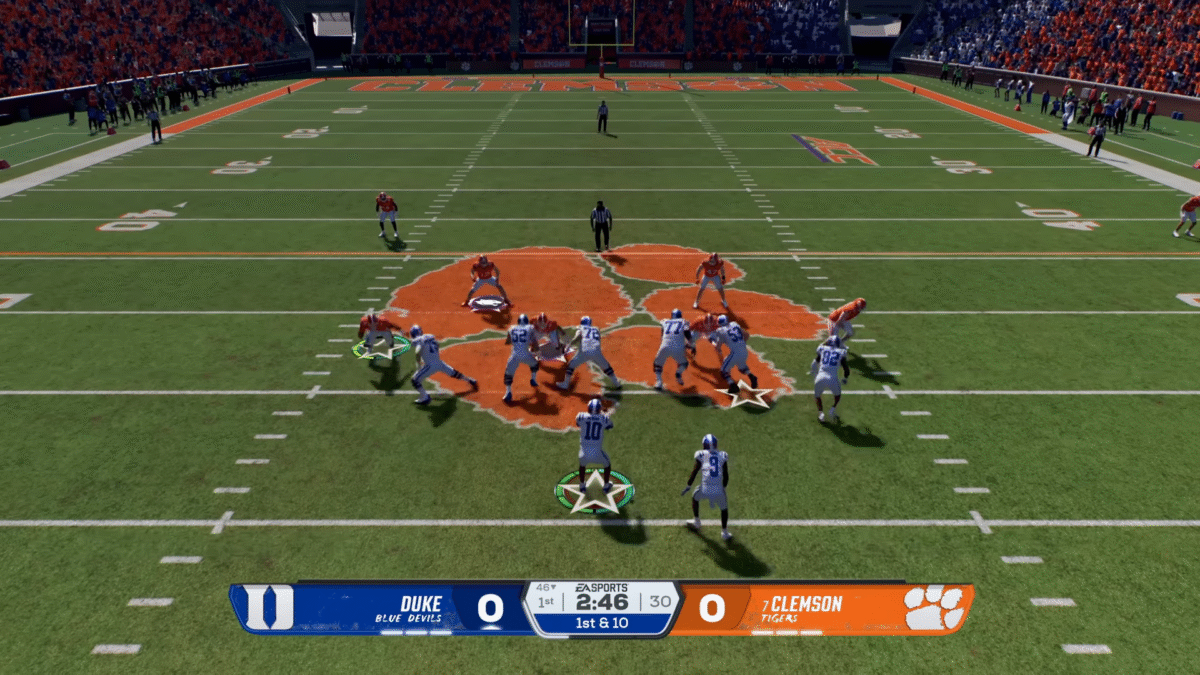
    College Football 26 brings a new set of features and customization to the game. But the list also includes a few changes to the gameplay, as well, especially Playmaker. While the system behind the Playmaker functions stays the same as in the earlier College Football entries, College Football 26 added one new button to trigger the Playmaker mechanics. Here is how to use Playmaker on a player in College Football 26.

    Use Playmaker on a Player
    Colllege Football 26 (1)
    Image via TheGameSlayer

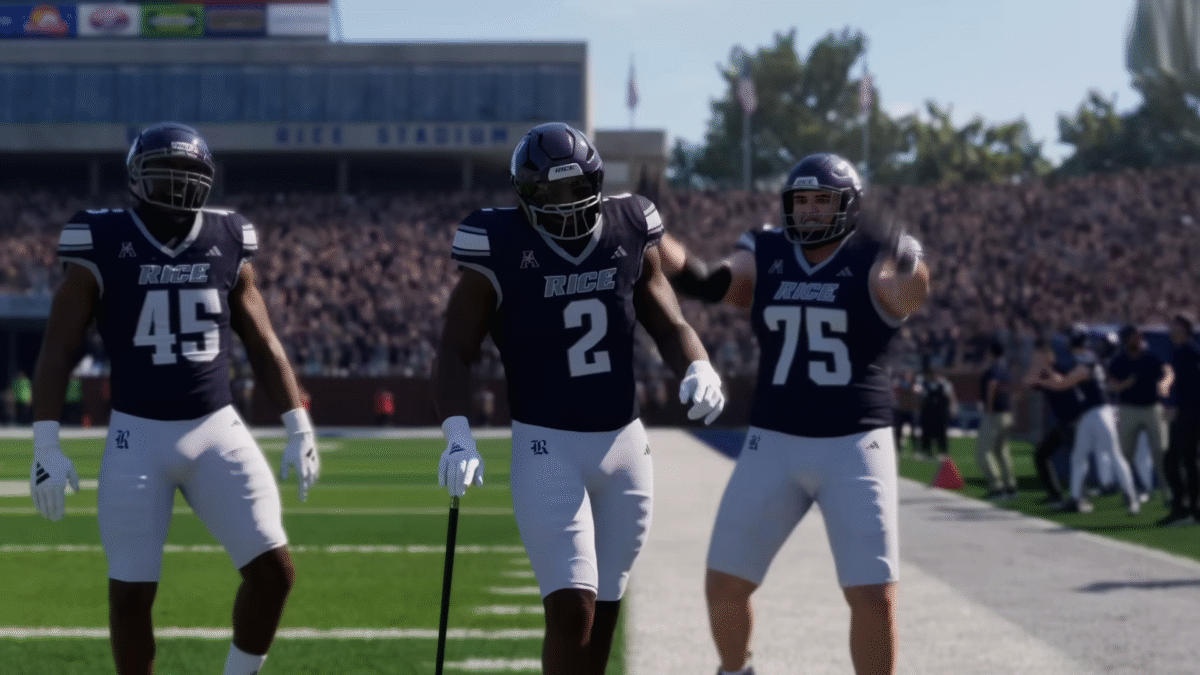
    In College Football 26, press the Right stick and hold the LT (Left-trigger) or L2 (Xbox) simultaneously to trigger the Playmaker. Remember that you can only use the Playmaker once you leave the pocket. Once you are outside of the pocket, either left or right, press the Right Stick and hold down the left trigger. Here, pick the closest receiver and change his direction.  Simply holding the Right Stick will not start the Playmaker move.

    In the older College Football entries, you could set up a playmaker to the closest receiver to the quarterback. All you had to do was leave the pocket, and you would be able to move the closest receiver in a direction by simply moving the Right Stick. But now with College Football 26, you must change the direction of any closest receiver by pressing the Right Stick and holding the Left-trigger; that’s about it.

    The game also offers a Pass Protection system that you can manage by using the Playmaker Menu. You can set up an offensive line that suits your needs. Playmaker options allow you to create custom stems, hot routes, and more. If you haven’t caught up with all the new Teambuilder features coming with College Football 26, we have a perfect guide to help you catch up.

    College Football 26
    Santosh Kumar
    • LinkedIn

    Santosh Panda creates gaming guides at The Game Slayer. With 5 years of writing experience under his belt, his journey to game writing has helped many fight the big monsters, solve intricate puzzles, disarm the hidden traps, and finally open the treasure box.

    Related Posts

    Subnautica 2 – Where to find and bioscan a Sandspear fish

    May 18, 2026

    Subnautica 2 – Do Resources Respawn & How Long Does It Take

    May 18, 2026

    Subnautica 2 – How To Upgrade The Sonic Resonator And Craft The Feedback Resonator

    May 18, 2026
    PREFERED SOURCE ON GOOGLE

    Add as your Preferred Source on Google to find us more easily next time in your searches!

    FOLLOW US
    • Facebook
    • Twitter
    • Bluesky
    • Mastodon
    Don't Miss
    Guides
    Subnautica 2 – Where to find and bioscan a Sandspear fish
    May 18, 2026

    The Sandspear is a dangerous fish. Here’s how to find and bioscan a Sandspear in Subnautica 2.

    Subnautica 2 – Do Resources Respawn & How Long Does It Take

    May 18, 2026

    Subnautica 2 – How To Upgrade The Sonic Resonator And Craft The Feedback Resonator

    May 18, 2026
    10.0

    Zero Parades: For Dead Spies Review

    May 18, 2026

    Subnautica 2 – How to Investigate Tadpole Pens

    May 17, 2026

    Subnautica 2 – Complete guide to Turning on Power in Alien Ruins

    May 17, 2026

    Subnautica 2 – How To Get & Use Growbeds

    May 17, 2026
    • Home
    • Privacy Policy
    • About Us
    • Contact Us
    • Reviews Policy
    • OPENCRITIC
    © 2026 TheGameSlayer

    Type above and press Enter to search. Press Esc to cancel.

    We use cookies to ensure that we give you the best experience on our website. If you continue to use this site we will assume that you are happy with it.