

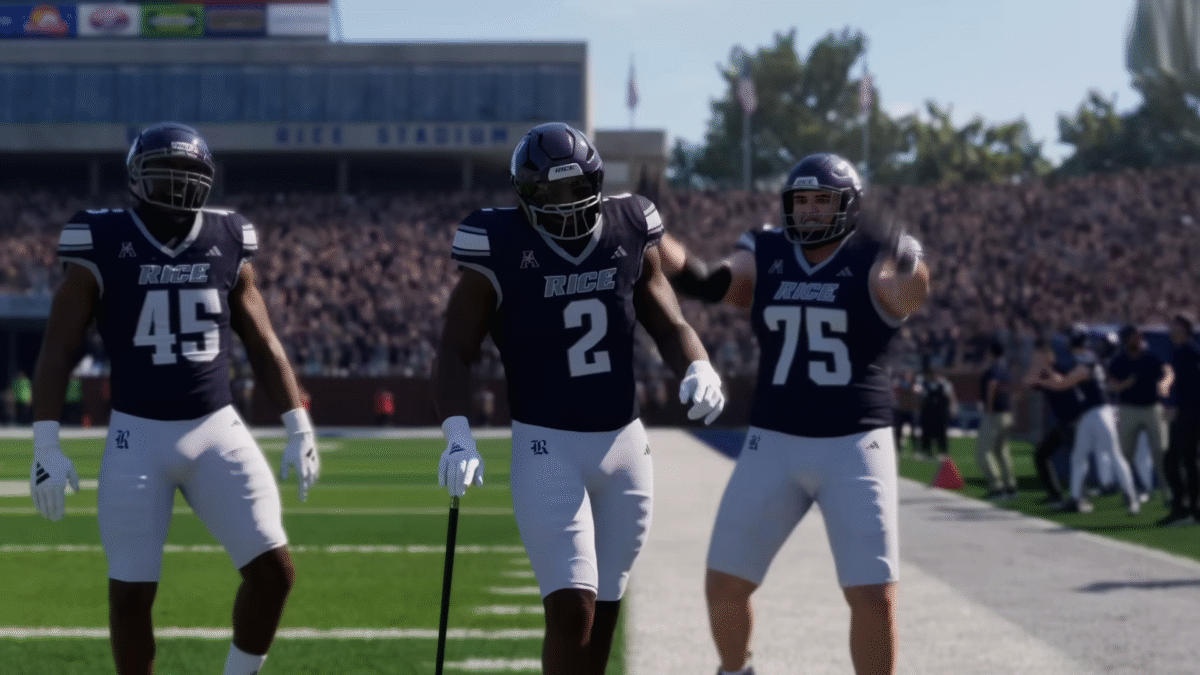
College Football 26 builds on all the features of team building that were present in the previous entry. Loads of new features have been added to College Football 26, enhancing the personalization aspect of the team-building experience. This guide will look over all the new features added and how you can use the Team Builder in College Football 26.
All New Features in College Football 26 Team Building
Here is the list of Team Building features coming with the College Football 26:
- Customizable Logos: You can upload your own Logo and set it as your Primary, Secondary, and Tertiary option.
- Helmet Customization: You can further customize the team’s helmet with a unique design.
- Set up Customized Uniform: Here, you have a wide variety of options, over 600 combinations of uniforms from various named brands.
- Players Editing: College Football 26 brings in a lot of changes to the player customization options:
- Change the names of players
- Redshirt Status
- Edit out High School Star Ratings
- Tune Physical and Mental traits
- Select from a number of Archetypes
- Create potential ratings and Developmental attributes.
- Dealbreaker: Every player now has a Dealbreaker that creates expectation for the player; the game also added conference prestige as a dealbreaker.
- Stadium Customization: Now you can set up proper field design, seating, crowd, logos, endzone, numbers, Sidelines, and more to create a personalized vibe.
- Pipeline Set Up: College Football 26 allows you to gain complete control over the team’s geographic recruiting zones, which makes for a more customization option for the pipeline.
- Rivalries Setup: Now you can add up to five custom rivals to your team; the rivalry team will influence the gameplay of your team, that also includes the emotional state, and create challenges in the matchup.
Note: You can import your College Football 25 creations to the latest College Football 26 by choosing the Create and Share option on the Main Screen. Head to the Download Center to look for the team. So you can work on your team and make quick changes without having to start from scratch.
Also Read: CFB 26: The Complete Defense Guide(Best Adjustments, Playbook)
How to Create a Team in College Football 26?
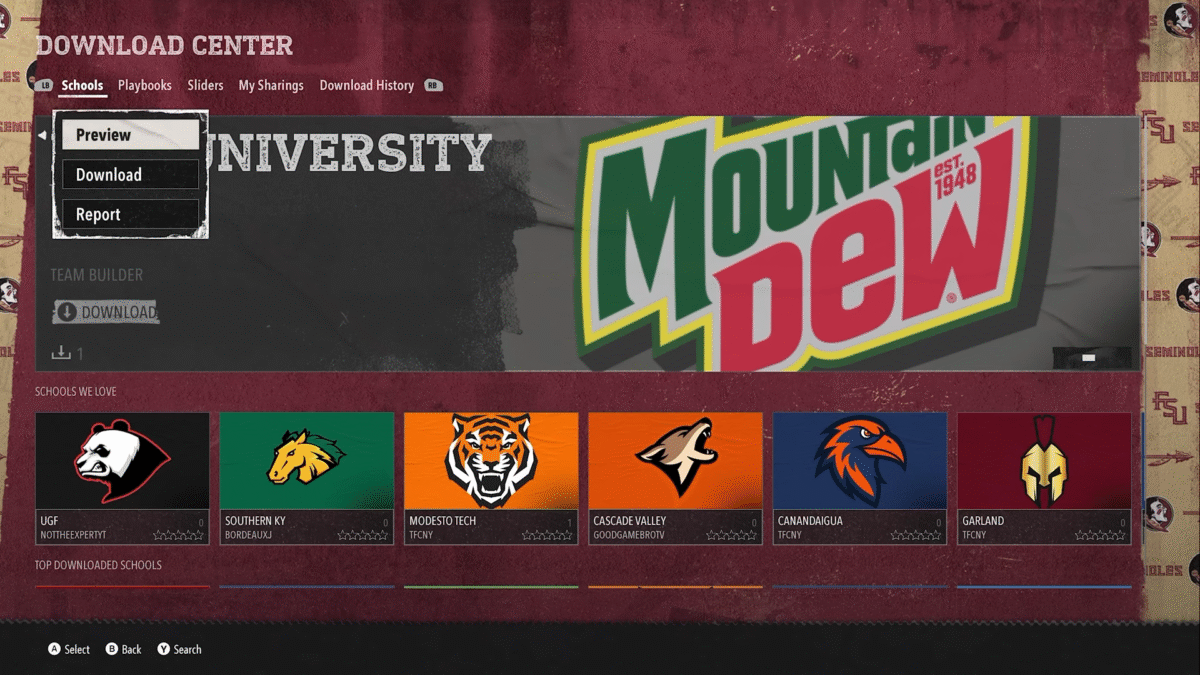
You must input your EA account details to create a team on the website. You can use another platform to sign up for the website. Here are the steps to create a team in College Football 26:
- Just head over to the College Football 26 Team Builder website and click on the Get Started option. It will ask you to input your email address, but you can choose to sign in with your Google, Facebook, Apple, Steam, Xbox, and PlayStation accounts.
- Now you will arrive on a new page with three options: Home Page, My Teams, and My Download History. The default would be the Homepage; here, choose the option Create.
- Create will direct you to a new page with five tabs: Brand, Uniform, Stadium & Field, Program, and Roaster.
- Brand: Choose School Info, Logos, Colors, Appeal Brand, and Fonts.
- Uniform: Change the Uniform of players.
- Stadium & Field: Choose the Architecture and variety of options for the Stadium.
- Program: Here you can customize: Championship Contender, Program Tradition, Campus Lifestyle, Pro Potential, Brand Exposure, Academic Prestige, Stadium Atmosphere, Athletic Facilities, Coach Stability & Prestige, and Conference Prestige.
- Roaster: Select your team and customize them to your liking.
After completing everything, you can head over to the Submit option at the top right of the screen. You will receive a “Team Submission Successful” notification after submitting your team. You can also choose to save the team and work on it later. The saved team will appear under the My Team section on the Homepage.
When you are looking for the team in the game, in the search field, use your console ID instead of the login nickname used on the website.
