

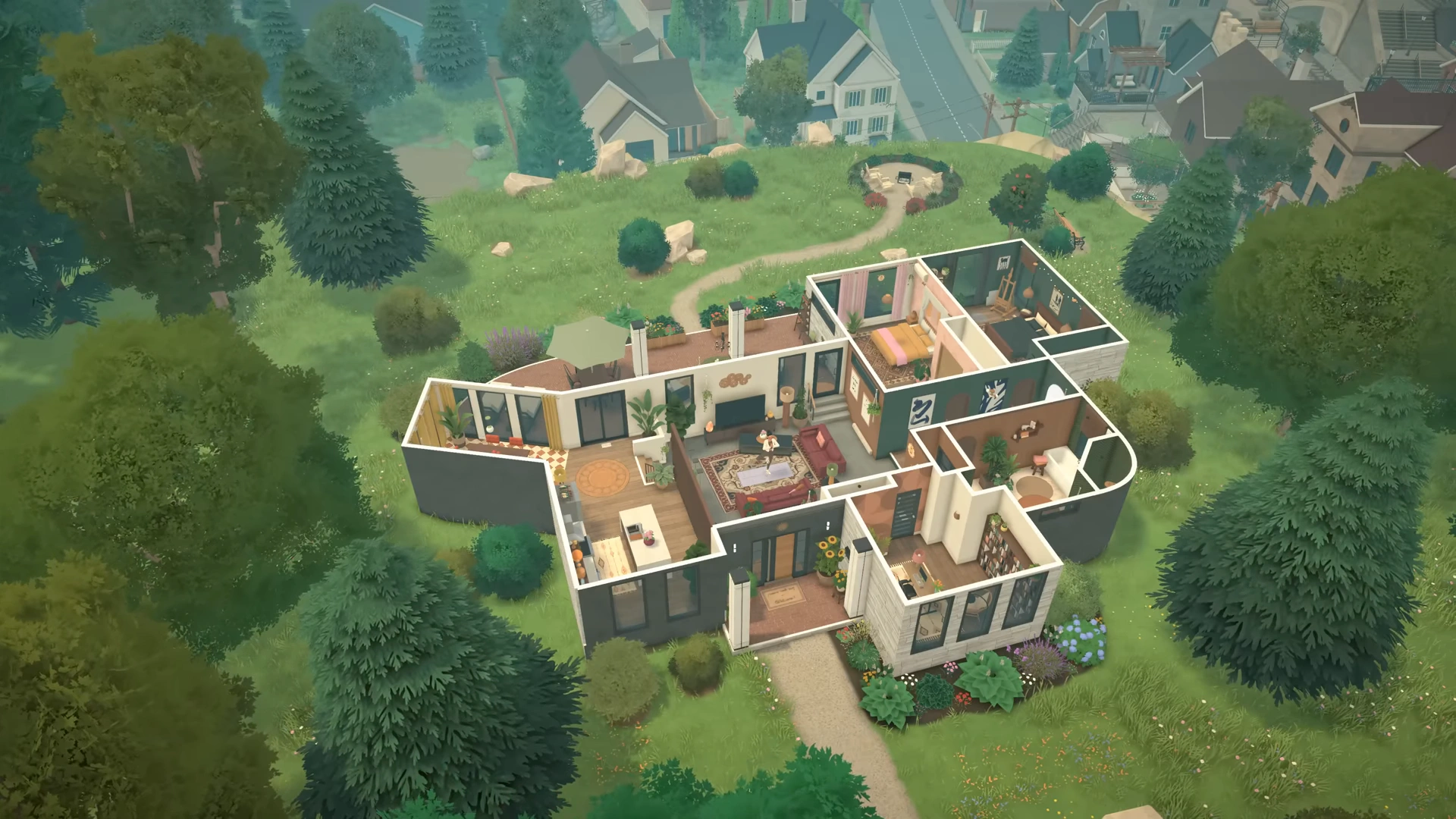
If you made a good character or a house that people want to live in, then why keep it a secret only to yourself? In Paralives, you can upload your mods directly to Steam so they can be viewed by people.
There is a pretty easy way to get this done through the Steam Workshop, without requiring any third-party websites or any related complicated procedures. The steps for uploading your house and Para follow the exact same system for uploading, but are done from two different screens. So first, we will cover the upload details for the house, and then we will get to the para.
Uploading House to Steam Workshop in Paralives
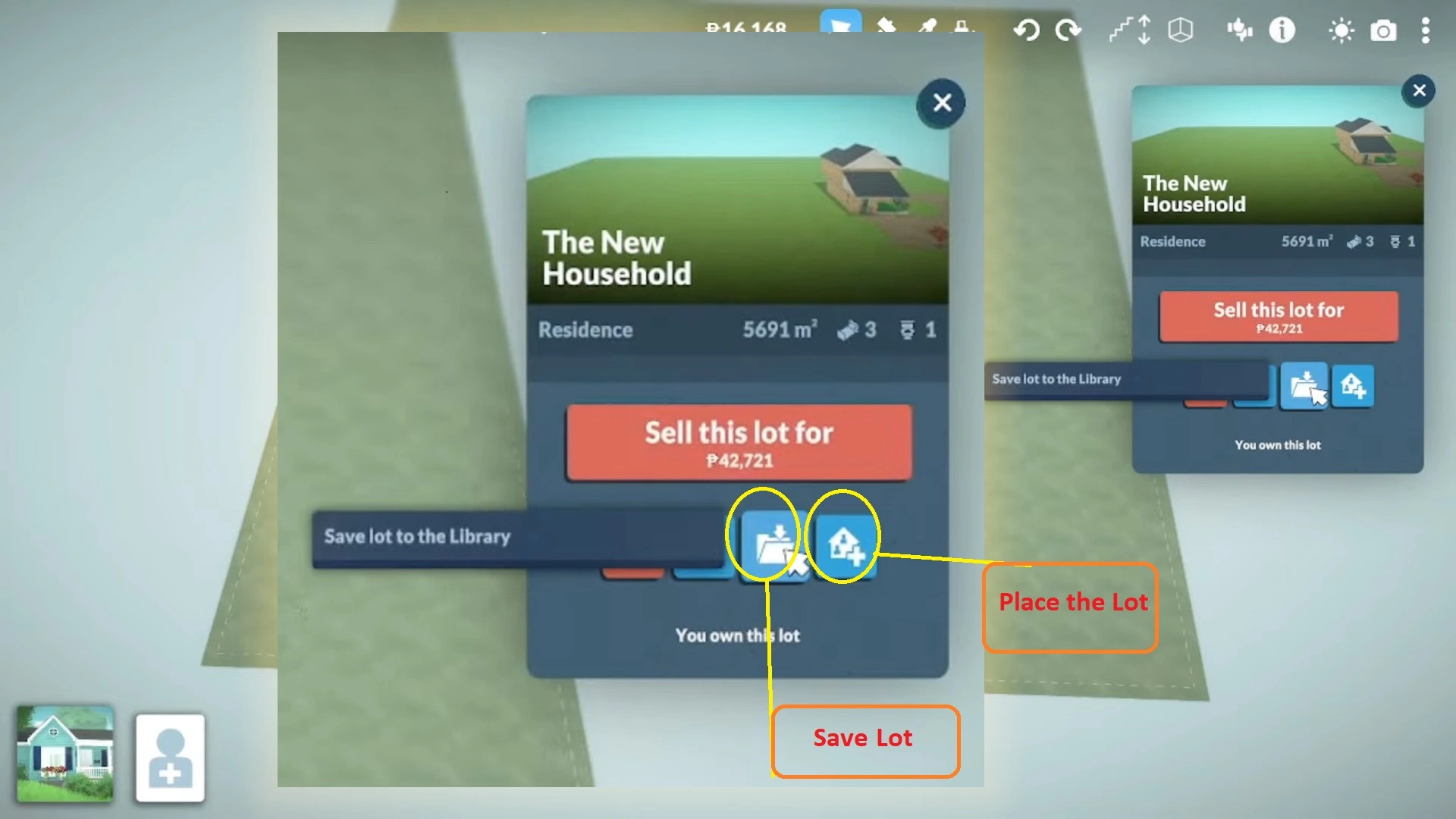
Instead of just saving the house on the photo mod, here are the steps to upload your House directly to Steam Workshop.
- First step first, build a house, a long arduous process, but once that’s done, we will now save it. Zoom out from the house, and you will get a green house icon. Click on it, and a menu will appear on the right.
- Now click on the third icon from the left, the Save icon. It will save your house to the Library. If you have already saved the house, then you will get a prompt for Overwrite/ Save as new/ Cancel.
- Once saved, click on the icon next to the Save icon, and it will allow you to place a lot from the Library. It will direct you to the Lot Library.
- On the Lot Library, you will see your saved Lot. Click on the Lot, and head to the bottom of the screen, and you will see a cloud save icon. Clicking on the icon will upload to the Steam Workshop.
Note: If you have already saved the Lot in the Lot Library, you will get the option to Overwrite when saving the Lot in the Lot Library. Overwrite, as the name implies, will replace the original Lot with the new one. You can also select Save as New to save your current Lot with a new name, so it will appear as a new Workshop mod.
Customization Options
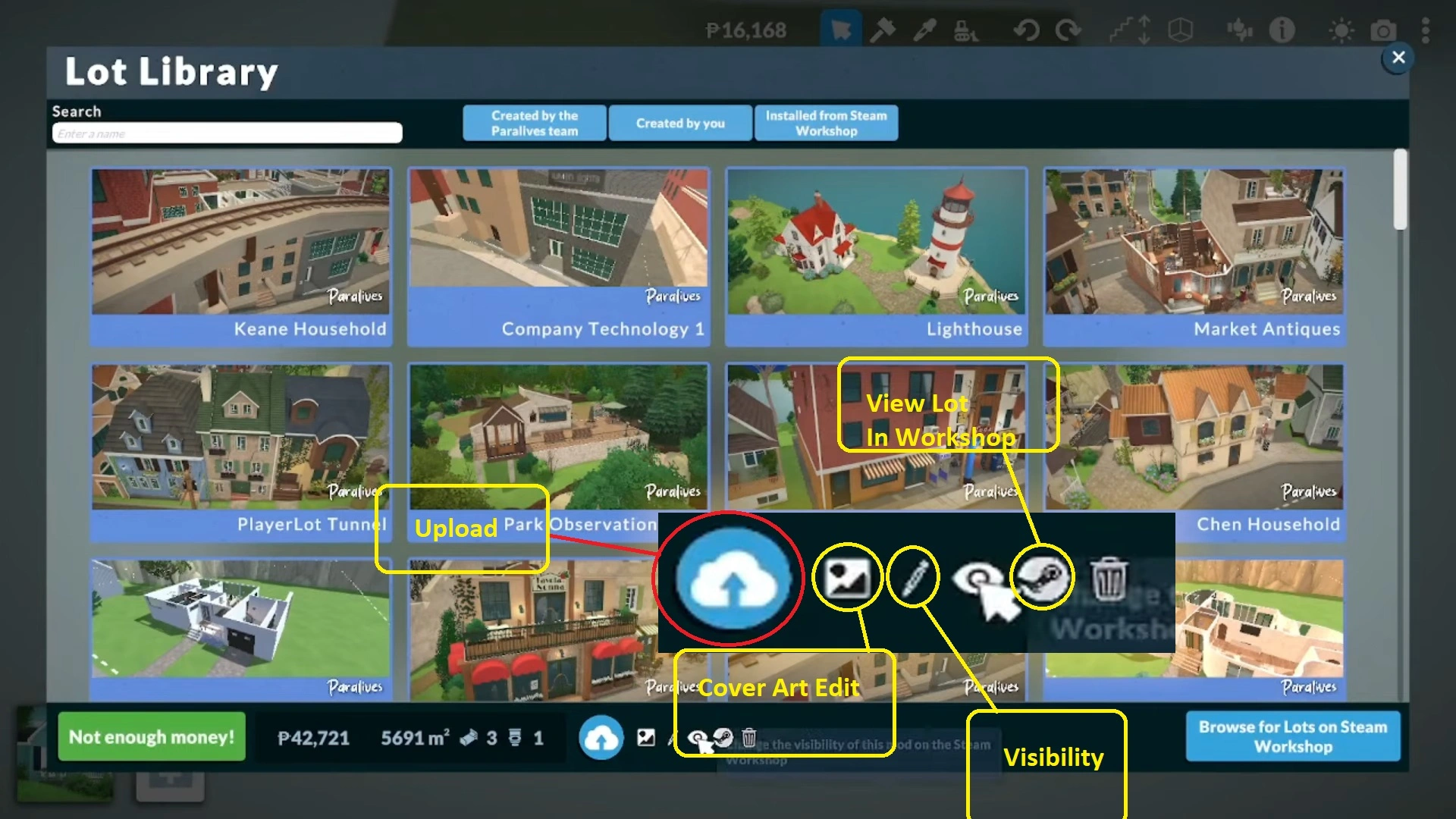
The toolbar at the bottom of the Lot Library holds all the functionalities you will need for your Lot details. Since your Lot will be heading to the Steam Workshop page, as a Workshop mod, you want to make it look appealing for the users. The customization option in Lot Library allows you to set cover art, visibility, and other details to make your Workshop mod more personalized.
- Cover Art: When you click on the icon next to the cloud save icon, you will get to save the mod’s cover image. You can select a picture from your desktop or download documents, pictures, or mods.
- Visibility: The pencil icon next to the cover art allows you to set the visibility of your Workshop mod.
- Public: Opens your Workshop mod for every player in the world.
- Friends Only: Only your friends can view and download the Workshop mod.
- Private: Only you can view the Workshop mod.
You can click on the Steam icon at the bottom of the screen to view the mod directly via Steam Workshop. Here, it gives you better details of the date of the mod, downloaded size, name, change logs, comments, discussion, etc.
If anybody wants to download the Workshop mod, they just have to hit Subscribe to your mod. Unsubscribing to the mod will remove the Workshop mod from your Paralives game.
Uploading Para to the Steam Library in Paralives
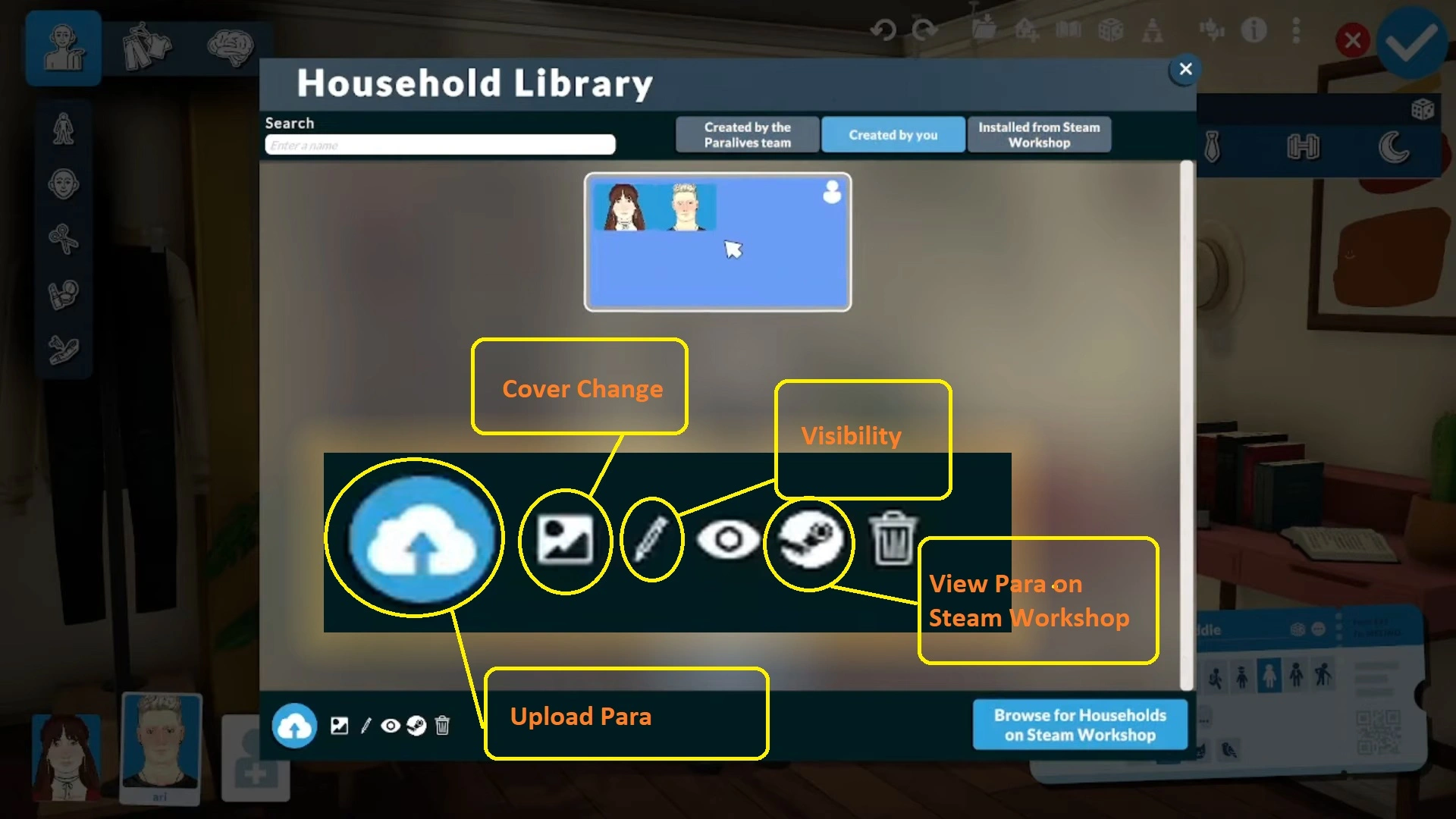
You can upload the para from the customization screen. While there are no options that allow you to go back to the character customization screen, here we will rely on cheats to get to that screen.
- First, press [Ctrl + F1] to bring up the Cheat Commands screen. Here, input ‘EDITCHARACTER‘ to open up the character customization screen.
Note: Don’t worry, bringing up the Cheat Commands will not put any sort of ban on your character. You will be able to continue your in-game progression without damaging anything.
- Now, on the top of the screen, choose Save Household to Library, then click on the icon next to it, and it will open up the Household Library.
Note: Household holds all the information regarding all the paras in your family. When you choose to Save Household to Library, it will save your family to the Household Library. If you named your Household, The Penguin Household, you will see the name ‘The Penguin Household’ appear on the Household Library.
- Here, you will also get the Overwrite option when you are saving your Household to the library. But you will get the option if you have already saved the Household to the library.
- On the Household Library, you will find three tabs or options at the top. Created by the Paralives team/ Created by you/ Installed from Steam Workshop. Click on Created by You to view your Household. Since in the example we chose, the Penguin Household, you will see Penguin Household appearing under the Created by you section.
- Now, if you take a look at the bottom-left of the screen, we will see all the familiar options that we used to put the Lot as a Workshop mod for Steam. Click on the cloud icon to upload the Household (The Penguin Household) to Workshop.
Next to the cloud icon, you will also have the customization options for the Household and how it will appear on the Workshop mod front.
More Customized Details for your Workshop Mod
Click on the steam icon to view your mod on Paralive’s Workshop. Steam also features its own set of customization tools to make your Workshop mod page even more detailed. On your Workshop mod page, check the panel on the right, and you will get the option for:
- Edit title & description: Make changes to the name and additional details of your Workshop mod.
- Add or edit images & videos: If you have taken videos or images of your Workshop mod (Paras or Lot), then you can upload them here to help the user understand what to expect from your Workshop mod.
- Add or Remove contributors: If you have crafted the Lot with the help of someone on your Steam Friends, then you add their details, so they can get the credit for the work.
- Edit Links: Make changes to the links.
While in-game you are limited to just Visibility and Cover Art changes, the Steam Workshop customization option allows you to do plenty more to make the mod even more appealing for the Paralives community.
