
Borderlands 4 has had a less-than-stellar launch, with people facing multiple issues during their journey through Kairos. One such error is the Incompatible Version Error, which stops players from enjoying the game with their friends across all platforms. Upon inviting other players, a message pops up saying: “The session you are trying to join is running an incompatible version of the game. Please try upgrading your game version.“ Here’s how to fix this issue.
How to Fix the Borderlands 4 Incompatible Version Error
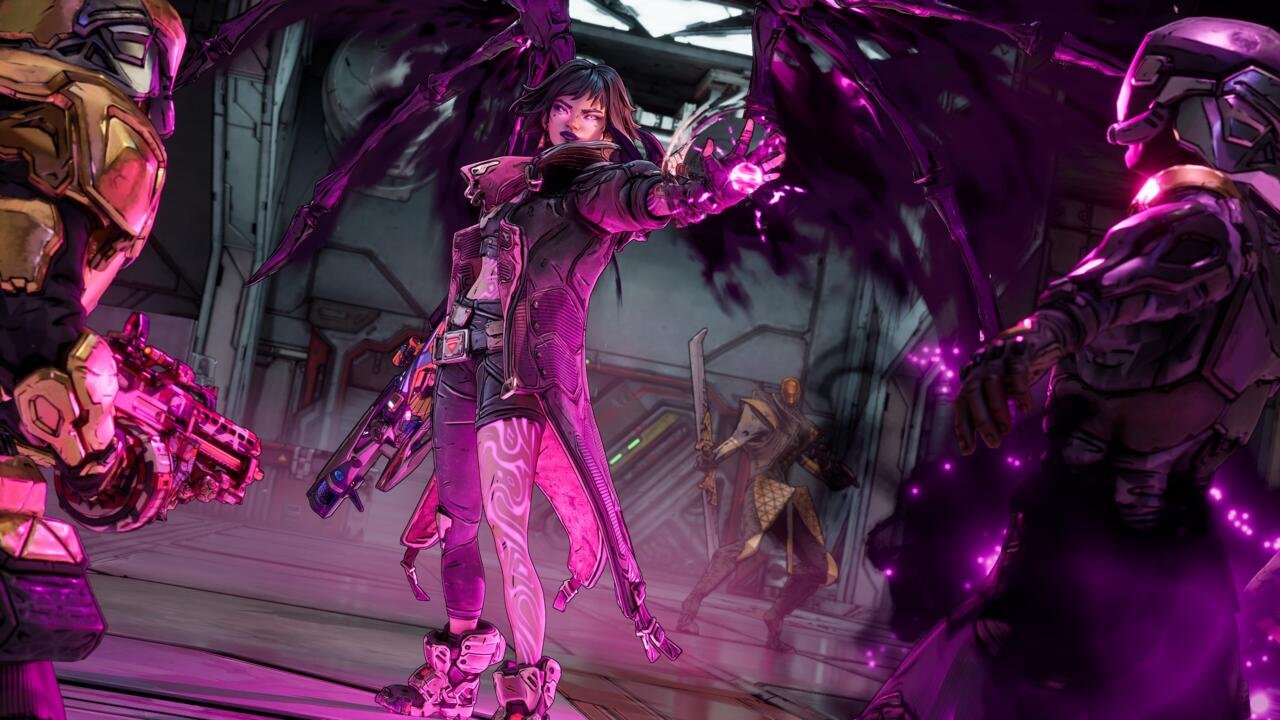
The Incompatible Version Error in Borderlands 4 looks like it is being caused by the latest patch that Gearbox Software has dropped for the game. This is what has worked for most players (thanks to GreenRepeat on this reddit thread):
- Go to the “C”>”Users”>Documents>”My Games” folder on your PC.
- Head to “Borderlands 4”, then click on the “Saved” folder.
- Inside the “Saved” folder, click on “PersistentDownloadDir”, then replace its content with the following content inside this Google Drive folder: https://drive.google.com/drive/folders/1rXquHgxDmEIcClfcIjiUuioMsjIW6Hk6?usp=drive_link
This resolves the issue for nearly all players, as it replaces the current “shiftsdk” and “Gearbox” folders with the ones provided in the Google Drive document. Once you’ve replaced the contents inside the PersistentDownloadDir file with the ones available on the Drive, relaunch your game, and the Incompatible Version Error should be resolved, allowing you to play with your friends. If the issue still isn’t fixed, here are some tips to try and resolve it..
Also Read: How to Get the Complex Root in Borderlands 4
Other Tips to Try Solving The Incompatible Version Error in Borderlands 4
- Delete the Patch File: Instead of replacing the PersistentDownloadDir contents with the ones from the Google Drive link, delete the patch folder from the game’s directory. Since the Incompatible Version Error stems from Gearbox Software’s latest software for the game, delete the patch file to potentially fix this issue once and for all.
- Update to the Latest Patch: The error could persist if one of your friends hasn’t updated Borderlands 4 to the latest version yet, causing the Incompatible Version error for you and your friends. Make sure to keep the game updated, and ask all your friends to update to the latest version to play without any bugs or errors.
- Reinstall the Game: This might take some time, but reinstalling the game completely from scratch might potentially resolve this issue. All you need to do is wipe out the game from your Steam library, then reinstall it. After reinstalling, launch Borderlands 4 and invite your friends again to check if this issue is fixed or not.
- Hard Reset: If all else fails, try unplugging your device and doing a hard reset, regardless of the platform you’re on. This will allow your system to reboot completely and offer you a fresh start to your Borderlands journey.
If the issue still isn’t fixed, then wait for an official patch from Gearbox Software that resolves the Incompatible Version Error in Borderlands 4. Facing more issues with the game? Check out our guide on how to fix the Settings Have Failed to Save error.
Set TheGameSlayer as your Preferred Source on Google to find us more easily when searching for game guides and news!
