

Close Menu

    Subscribe to Updates

    Get the latest creative news from FooBar about art, design and business.

    What's Hot
    Far Far West – All 3 Mysterious Train Wreck Locations
    May 4, 2026
    Gambonanza – Best Early Game Gambits
    May 3, 2026
    Neverness to Everness – Pink Paws Heist Guide (Map layouts, Tips & More)
    May 3, 2026
    Facebook X (Twitter) Instagram
    TheGameSlayerTheGameSlayer
    Facebook X (Twitter)
    • Home
    • News
    • Guides
    • Reviews
    • Features
    • Lists
    TheGameSlayerTheGameSlayer
    Home»Guides»Retro Rewind – How to Add Custom Videos to TV Footage
    Retro Rewind Store TV
    Image by TheGameSlayer
    Guides

    Retro Rewind – How to Add Custom Videos to TV Footage

    By Melissa SarnowskiMarch 27, 2026
    Share
    Facebook Twitter Reddit WhatsApp Pinterest LinkedIn

    You might’ve noticed the TVs in the corners of your store in Retro Rewind. By default, there are three channels you can switch between by going up to the TV and interacting with it. However, you can add custom videos to your game that replace the default footage, which can entertain you when you have a slow day running the rental store.

    As long as you use the proper format and resolution, there doesn’t seem to be a limit as to what you play for custom footage. Some players have even reported that they have full seasons of shows set up to play on the in-store TV, so you can get creative with it.

    Setting Up Custom Videos in Retro Rewind

    When you decide on what you want to use for custom footage, make sure the file is an MP4 file and the resolution is 512×512. Then, you need to replace the default files used for the store TVs with your custom videos.

    The easiest way to do this is first finding Retro Rewind on your Steam list, then right-clicking on it. Go to “Browse Local Files” under “Manage.” This should open up the location on your computer where Retro Rewind is saved.
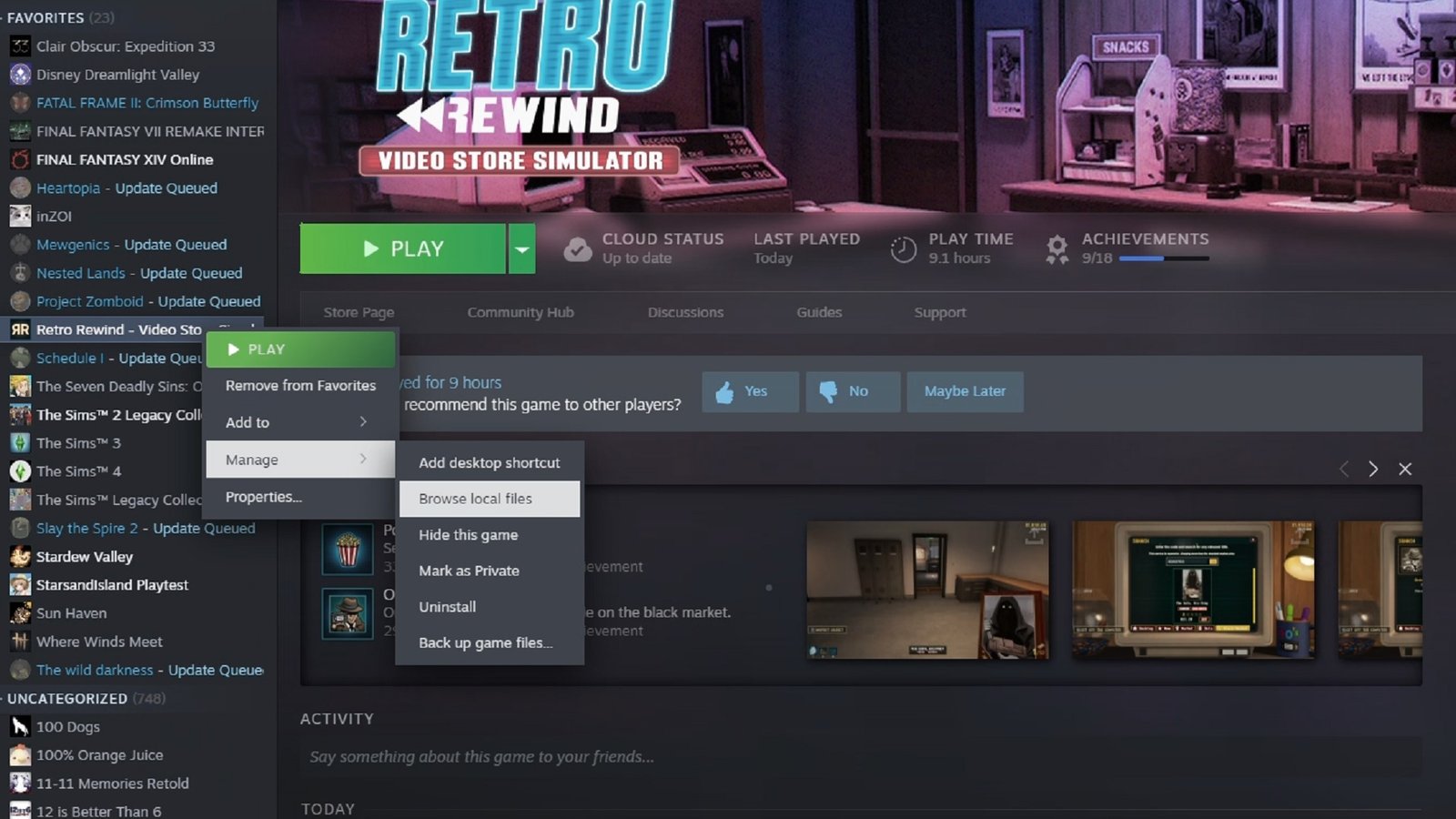
    Retro Rewind Browse Local Files
    Image by TheGameSlayer

    From there, go to: Content -> Movies -> VHS. Inside the “VHS” folder, you’ll find folders named Police, Public, and Sci Fi. Those are the folders that are used to put footage on the in-store TVs.

    Now, change the name of the video you want to use to match the name of the file inside the folder. Then, put your custom video with the new name in the selected folder.
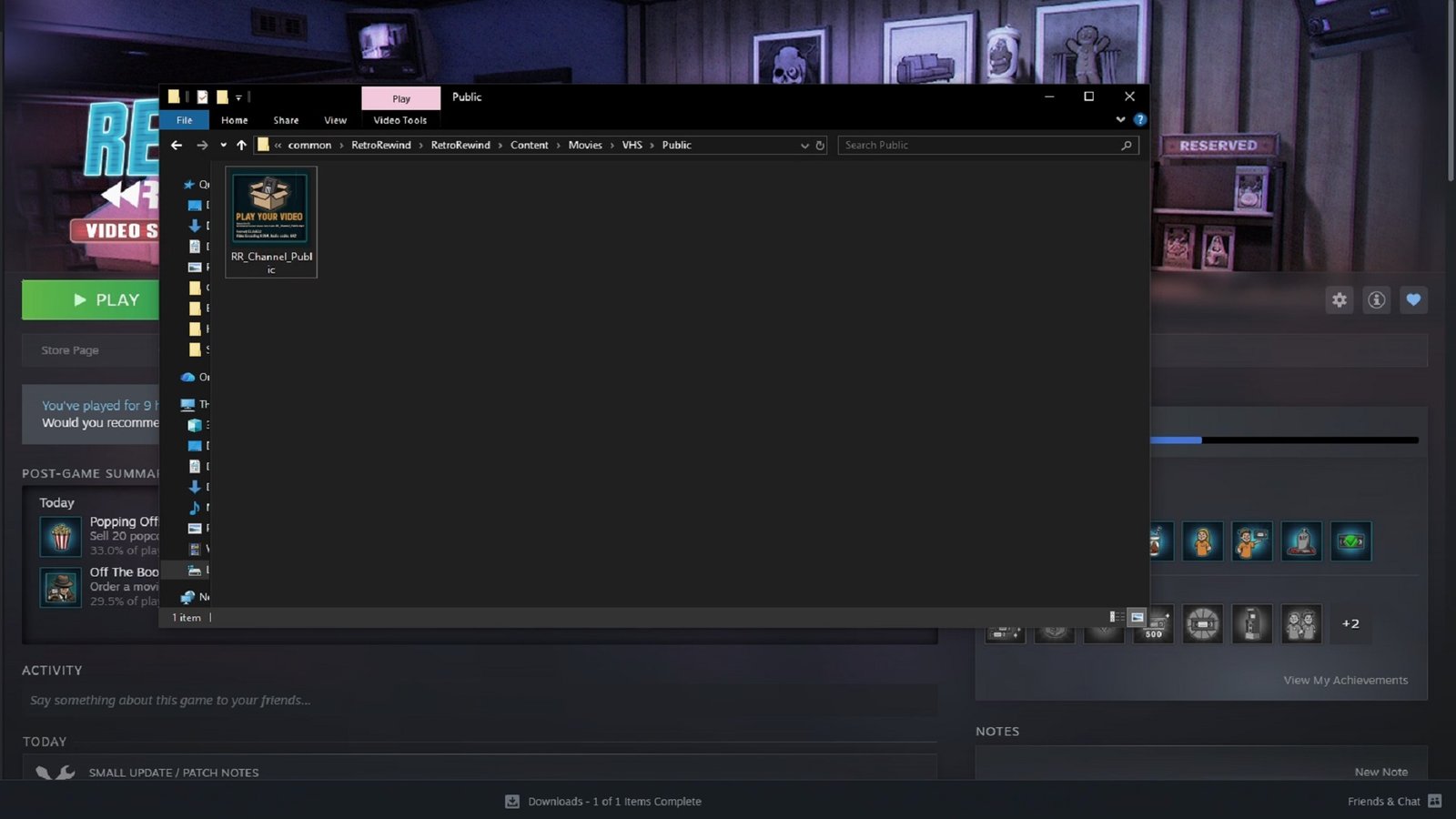
    Retro Rewind Video File

    Playing Custom Videos

    When you’re in-game, you should be able to switch the TV to the channel you put your video in and play the custom footage. You can also change the volume of the TV when interacting with it in your store.
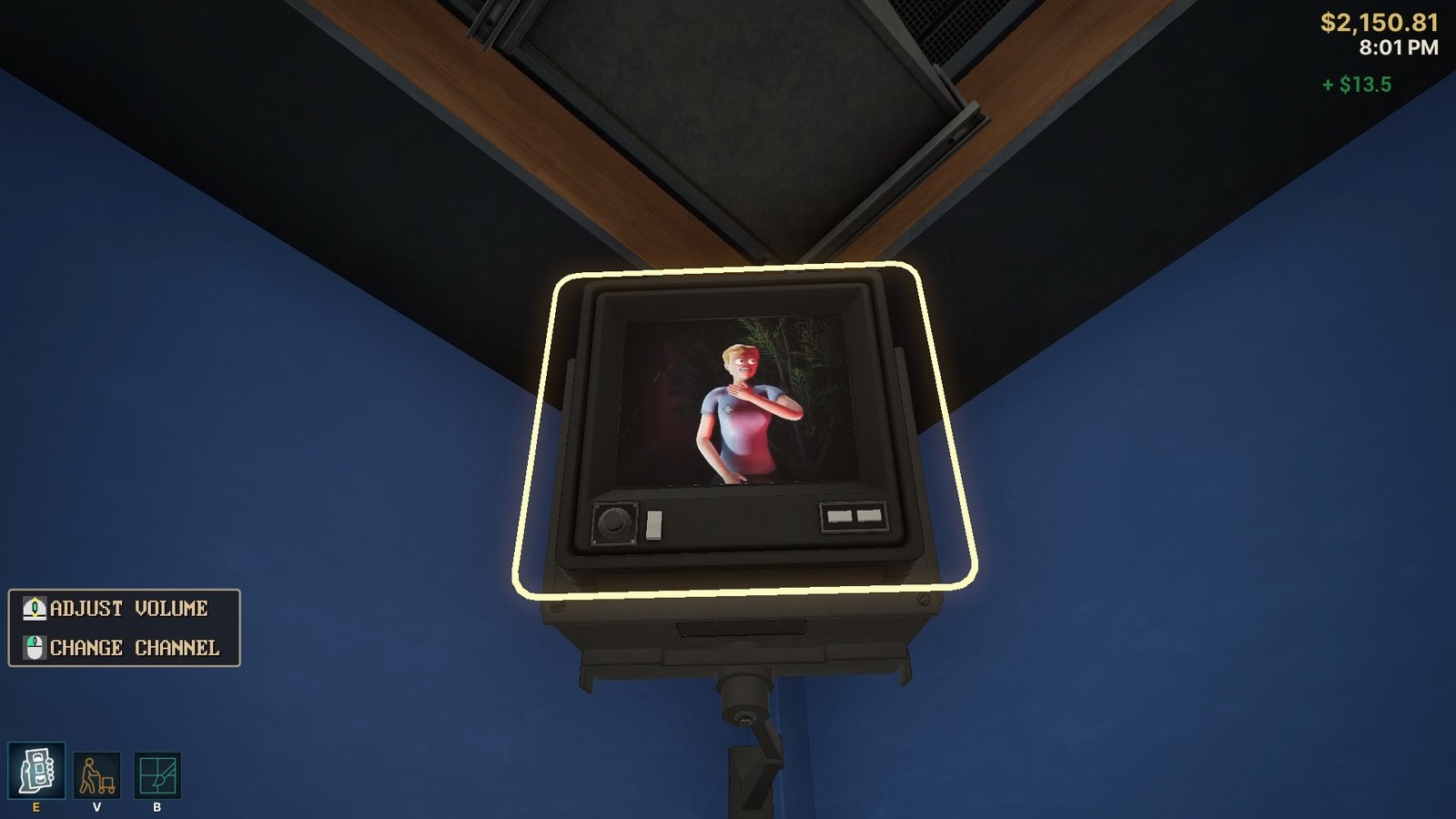
    Retro Rewind Store TV Settings Custom Video
    Image by TheGameSlayer

    Troubleshooting if the Custom Video does not play in Retro Rewind

    Also Read: How to increase Store Size in Retro Rewind

    If the custom video isn’t playing, the most likely problem is an issue with the resolution or replacing the default file. In that case, check the MP4 file and make sure it’s the right type and resolution. If it is, then try putting it in the folder for one of the other two channels and testing if that works. Also, double check if the name of the file has been changed correctly to match what was in that folder before.

    In the event that all of these fail, try finding a different MP4 file and seeing if that one will play in-game, which could mean that the original file had some kind of issue with the file itself. Then, you can entertain yourself with any kind of custom video you want to watch as you work in Retro Rewind.

    Retro Rewind
    Melissa Sarnowski
    • Website
    • LinkedIn

    Melissa Sarnowski has been a game writer for almost three years. While she's willing to dig into any game for an article, her favorite genres include RPGs and horror games.

    Related Posts

    Far Far West – All 3 Mysterious Train Wreck Locations

    May 4, 2026

    Gambonanza – Best Early Game Gambits

    May 3, 2026

    Neverness to Everness – Pink Paws Heist Guide (Map layouts, Tips & More)

    May 3, 2026
    PREFERED SOURCE ON GOOGLE

    Add as your Preferred Source on Google to find us more easily next time in your searches!

    FOLLOW US
    • Facebook
    • Twitter
    • Bluesky
    • Mastodon
    Don't Miss
    Guides
    Far Far West – All 3 Mysterious Train Wreck Locations
    May 4, 2026

    As you start your journey into the Far Far West, you’ll notice some regions mention…

    Gambonanza – Best Early Game Gambits

    May 3, 2026

    Neverness to Everness – Pink Paws Heist Guide (Map layouts, Tips & More)

    May 3, 2026

    Far Far West – The Complete Willy Billy Questline

    May 2, 2026

    Neverness to Everness: Miles Apart Quest Guide

    May 1, 2026

    Far Far West – Best Weapons (Primary & Secondary)

    May 1, 2026

    Far Far West – Best & Most OP Combos

    April 30, 2026
    • Home
    • Privacy Policy
    • About Us
    • Contact Us
    • Reviews Policy
    • OPENCRITIC
    © 2026 TheGameSlayer

    Type above and press Enter to search. Press Esc to cancel.

    We use cookies to ensure that we give you the best experience on our website. If you continue to use this site we will assume that you are happy with it.