


Close Menu

    Subscribe to Updates

    Get the latest creative news from FooBar about art, design and business.

    What's Hot
    7
    Tides of Tomorrow Review
    April 21, 2026
    Pragmata – The Complete Training Sim Guide
    April 20, 2026
    PRAGMATA – Large Bot Boss Fight Guide
    April 19, 2026
    Facebook X (Twitter) Instagram
    TheGameSlayerTheGameSlayer
    Facebook X (Twitter)
    • Home
    • News
    • Guides
    • Reviews
    • Features
    • Lists
    TheGameSlayerTheGameSlayer
    Home»Guides»How To Set Up Online Dynasty & Invite Friends In College Football 25
    Online Dynasty College Football 25 feature image
    Image via EA Sports
    Guides

    How To Set Up Online Dynasty & Invite Friends In College Football 25

    By Chirag KapadiaJuly 16, 2024
    Share
    Facebook Twitter Reddit WhatsApp Pinterest LinkedIn

    College Football is making a comeback after 11 years, what with the last game in the popular franchise having released in 2013 as NCAA Football 14. The game launches on consoles, and one of the key feature that has a lot of gamers excited and talking about is the Online Dynasty mode. In this guide, we cover everything on how to set up Online Dynasty and invite friends in College Football 25.

    How To Start Online Dynasty In College Football 25
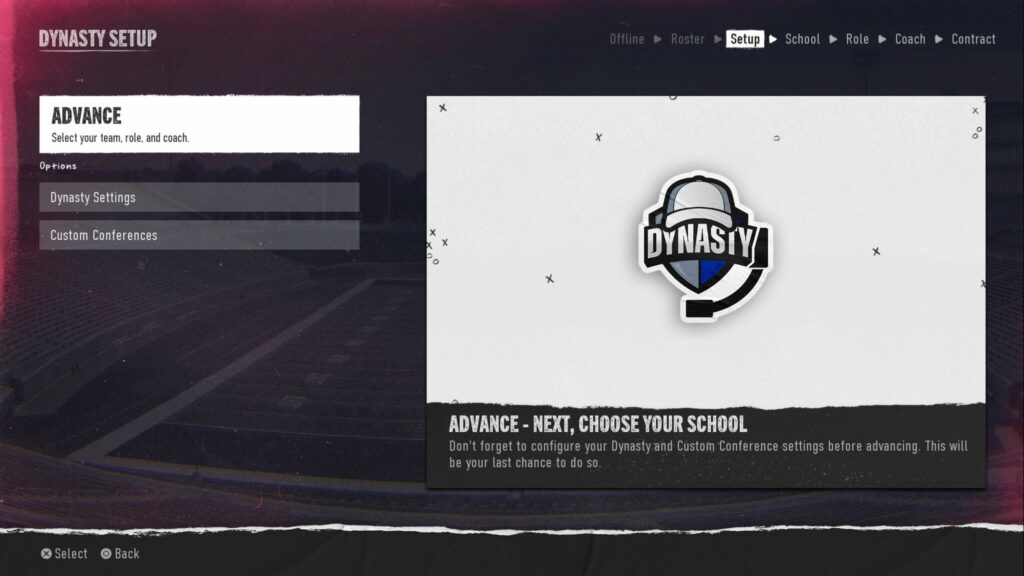
    Online Dynasty in EA Sports College Football 25
    Image via TheGameSlayer

    College Football 25 is not making it a simple one-step process – in order to get the Online Dynasty going in this game, you will need to do the following:

    • Go to Game Modes and select Dynasty under Career
    • Select Cloud Dynasty as the Dynasty Type
    • Make any Settings changes or set up Custom Conferences if you want to, else move to the next screen
    • Pick your roster – either Default or the one that you have made
    • Select the team, the role and the coach, and sign the coaching contract
    • Go to Dynasty Central and select Members
    • Click on Invite Member and send invites to your friends!

    How To Accept an Invite In College Football 25

    EA Sports College Football 25 feature image

    In order to accept an invite in College Football 25 from your friend, go to Game Modes -> Dynasty, and you will see a Load / Accept Invite option which lists all the invites that have been sent to you. Click on that particular invite and you are done!

    Remember – EA College Football 25 does not have cross-play yet, which means that you and your friends need to be on the same console for the Online Dynasty to work.

    And that completes everything that you need to know on how to set up Online Dynasty and invite friends in College Football 25. Do check out our other guides on the game like how to kick in EA Sports College Football 25, or in case you are having issues with the server- how to check server status.

    EA Sports College Football 25
    Chirag Kapadia
    • LinkedIn

    Gamer since Atari 2600 was a thing. Worked across organizations for 16 years including McKinsey; has since then switched over to the dark side - and started writing. Most likely to be found these days doing a re-run on Elden Ring

    Related Posts

    Pragmata – The Complete Training Sim Guide

    April 20, 2026

    PRAGMATA – Large Bot Boss Fight Guide

    April 19, 2026

    The Top 3 Pragmata Builds

    April 19, 2026
    PREFERED SOURCE ON GOOGLE

    Add as your Preferred Source on Google to find us more easily next time in your searches!

    FOLLOW US
    • Facebook
    • Twitter
    • Bluesky
    • Mastodon
    Don't Miss
    Reviews
    Tides of Tomorrow Review
    7 April 21, 2026

    I’ll be the first to admit that I loathe the idea of ‘butterfly effect’ choices…

    Pragmata – The Complete Training Sim Guide

    April 20, 2026

    PRAGMATA – Large Bot Boss Fight Guide

    April 19, 2026

    The Top 3 Pragmata Builds

    April 19, 2026

    Windrose – How to Get and Use Bezoar

    April 18, 2026

    Pragmata – Gigantic Bot Boss Fight Guide

    April 17, 2026

    Pragmata – How to Break the Blue Crystals

    April 17, 2026
    • Home
    • Privacy Policy
    • About Us
    • Contact Us
    • Reviews Policy
    • OPENCRITIC
    © 2026 TheGameSlayer

    Type above and press Enter to search. Press Esc to cancel.

    We use cookies to ensure that we give you the best experience on our website. If you continue to use this site we will assume that you are happy with it.